Moving your /home partition to a new disk
A couple of weeks ago my hard drive started to fail. The boot time started degrading and a scan to the /home partition would run in every boot. Also sometimes it would return i/o errors.
A look at the disk’s SMART data confirmed a number of bad sectors.
So I bought a new disk and migrated my /home partition.
The setup
I have a SSD drive with my root (/) partition and a HDD drive with my /home partition. I bought a new HDD drive to replace the old one and connected both at the same time for the migration process.
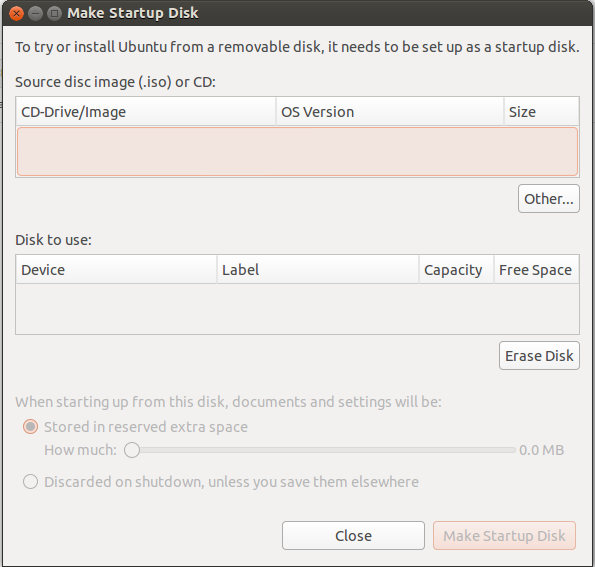
Booting into a live environment
I installed Ubuntu into a pen drive using the Startup Disk Creator. This allowed me to boot into a full Ubuntu environment without booting from my actual system.
Discover the UUIDs of the drives
Before starting the process we need to identify the drives by UUID.
1sudo blkid
1/dev/sda1: SEC_TYPE="msdos" UUID="2003-0A17" TYPE="vfat"
2/dev/sda2: UUID="3060abca-18af-78ff-1234-1581aabbccdd" TYPE="ext4"
3/dev/sdb1: UUID="1998abca-aaaf-847f-4567-14aaaa12ccdd" TYPE="swap"
4/dev/sdb5: UUID="aaffea123-23aa-88fa-bbbb-601ffa135484" TYPE="ext4"
5/dev/sdc5: LABEL="BACKUP" UUID="aa55abca-18af-78ff-1234-601ffa135484" TYPE="ext4"
6/dev/sdd1: UUID="1998abca-d5f5-bbcb-17a9-14aaaa12ccdd" TYPE="swap"
7/dev/sdd5: UUID="1998abca-aaaf-4780-87a7-a01ffa135484" TYPE="ext4"
8/dev/sde1: UUID="ABaA-1ACA" TYPE="vfat"
Use Gparted to help you to identify the right device.
In my case the old drive is sdb5 and the new drive is sdd5.
Mounting the drives
Being in a live environment the drivers aren’t mounted, so we need to mount both the new and the old drives:
1sudo mkdir /media/homeold
2sudo mount /dev/sdb5 /media/homeold
3sudo mkdir /media/homenew
4sudo mount /dev/sdd5 /media/homenew
Check if the old and new drivers were mounted correctly:
1ls /media/homeold
2ls /media/homenew
Copy the /home partition to the new drive
Depending on the size of your /home partition this could take a while:
1sudo rsync -axS --exclude='/*/.gvfs' --exclude='lost+found' /media/homeold/. /media/homenew/.
Automatically mount the /home partition on the new drive
Now that the /home partition is in the new drive, we need to change the fstab file to point to the new drive.
First we need to mount the system partition:
1sudo mkdir /media/system
2sudo mount /dev/sda2 /media/system
Then backup the fstab file:
1sudo cp /media/system/etc/fstab /media/system/etc/fstab.$(date +%Y-%m-%d)
Finally change the fstab to reflect the new drive.
1gksu gedit /media/system/etc/fstab
1#UUID=aaffea123-23aa-88fa-bbbb-601ffa135484 /home      ext4   defaults     0    2
2UUID=**1998abca-aaaf-4780-87a7-a01ffa135484** /home      ext4   defaults     0    2
Remove the old drive
Now you can disconnect your machine, remove the old drive and reboot normally.
Everything should work like before.