🖥️ 🐧 Installing Arch Linux in my new Surface Go
Surface Go
- Surface Go (10’’ - Intel Pentium Gold 4415Y - RAM: 8 GB - 128 GB SSD - Intel HD 615)
- Surface Go Black Type Cover
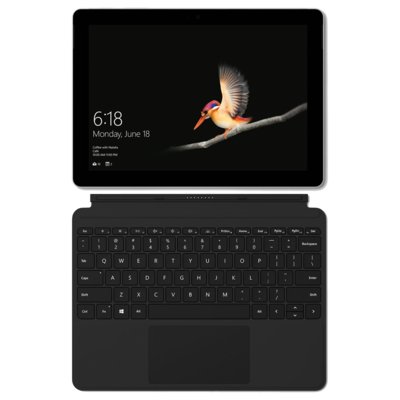
Final setup
- Run only Linux
- Arch Linux
- Gnome
Preparation
Needed hardware
- Surface Go
- Surface Go Keyboard or USB keyboard/mouse
- USB pen drive
- USB Ethernet adapter
- USB-C to USB adapter + USB Hub or USB-C hub
Burn ISO to USB pen drive
- Download the Arch Linux ISO.
- Burn the iso in the pen drive.
1sudo dd bs=4M if=archlinux-2019.10.01-x86_64.iso of=/dev/sdc status=progress oflag=sync
Connect the dongles
Depending on your setup make sure you have the USB pen drive with the Arch Linux ISO burned and a Ehternet cable connected.
Disable Secure Boot
- Shut down your Surface.
- Press and hold the Volume Up button on your Surface, then press and release the Power button.
- When you see the Surface logo screen appear, release the Volume Up button. The UEFI settings menu will appear in a few seconds.
- Click on Boot Configuration and move USB Storage up the list.
- Click on Security and set Secure Boot to disabled.
- Click on Exit,
- Save the settings and reboot.
Installation from the USB pen drive live environment
First steps and testing Internet connection
Make sure to use the correct keyboard layout (e.g.: for a portuguese layout; use the ? key for the - character).
1loadkeys pt-latin9
Test the Internet connection.
1ip link
2dhcpcd
3ping archlinux.org
Active ntp service.
1timedatectl set-ntp true
Make sure the en_US.UTF-8 is uncommented.
1nano /etc/locale.gen
2locale-gen
Create partitions
List the drives and use cgdisk to create the partitions.
1lsblk
2cgdisk /dev/nvme0n1
Partitions to create.
| # | Size | Hexcode | Label |
|---|---|---|---|
| 1 | 1G | ef00 | boot_efi |
| 2 | 1G | ef02 | boot |
| 3 | 109G | 8304 | root |
| 4 | 8.2G | 8200 | swap |
Format the partitions.
1mkfs.vfat /dev/nvme0n1p1
2mkfs.ext4 /dev/nvme0n1p2
3mkfs.ext4 /dev/nvme0n1p3
4mkswap /dev/nvme0n1p4
5swapon /dev/nvme0n1p4
Mounting the partitions
1mount /dev/nvme0n1p3 /mnt
2mkdir -p /mnt/boot
3mount /dev/nvme0n1p2 /mnt/boot
4mkdir -p /mnt/boot/efi
5mount /dev/nvme0n1p1 /mnt/boot/efi
Install the base system
Choose a mirror near you.
1nano /etc/pacman.d/mirrorlist
Copy your preferred mirror to the first line.
Tips:
- Alt+6 to copy a Server line.
- PageUp key to scroll up.
- Ctrl+U to paste it at the top of the list.
- Ctrl+X to exit, and when prompted to save changes, press Y and Enter.
Refresh the packages list and install the base system.
1pacman -Syy
2pacstrap /mnt base base-devel linux linux-firmware
Generate the fstab file.
1genfstab -U /mnt >> /mnt/etc/fstab
Configurations, drivers and boot manager
Change context to the base install mounted partitions.
1arch-chroot /mnt
Install nano to edit files.
1pacman -S nano
Define your local timezone.
1ln -s /usr/share/zoneinfo/Europe/Lisbon /etc/localtime
Hardware clock.
1hwclock --systohc --utc
Uncomment en_US.UTF-8 UTF-8 and generate the locale.
1nano /etc/locale.gen
2locale-gen
LANG and KEYMAP configurantion.
1echo "LANG=en_US.UTF-8" >> /etc/locale.conf
2echo "KEYMAP=pt-latin9" >> /etc/vconsole.conf
Hosts and hostname configuration.
1echo "myhostname" >> /etc/hostname
2echo "127.0.0.1  localhost" >> /etc/hosts
3echo "::1        localhost" >> /etc/hosts
4echo "127.0.1.1  myhostname.localdomain  myhostname" >> /etc/hosts
Install and enable network services.
1pacman -S networkmanager
2systemctl enable NetworkManager.service
Useful to have sooner than later.
1pacman -S git wget unzip openssh
2systemctl enable sshd
mkinitcpio.
1mkinitcpio -P
Change your root user password.
1passwd
Install grub.
1pacman -S grub efibootmgr
2grub-install --target=x86_64-efi --efi-directory=/boot/efi --bootloader-id=GRUB
3grub-mkconfig -o /boot/grub/grub.cfg
Install intel-ucode.
1pacman -S intel-ucode
Exit and reboot.
1exit
2umount /mnt/{boot,home,boot/efi,}
3reboot
Next steps before a window environment
Log in as root and create your user.
1useradd -m -g users -s /bin/bash youruser
2chfn youruser
3passwd youruser
Create a new group to match your user.
1groupadd yourgroup
2gpasswd -a youruser yourgroup
Add your user as a sudoer.
1pacman -S sudo vi
2visudo /etc/sudoers
Add:
youruser ALL=(ALL) ALL
Video and audio.
1pacman -S xorg-server xorg-xinit xorg-apps xorg-twm xorg-xclock xterm
2lspci | grep -e VGA -e 3D
3pacman -S xf86-video-intel xf86-input-libinput
4pacman -S pulseaudio pavucontrol alsa-utils
5startx
Gnome and gdm.
1pacman -S gnome gnome-shell gdm
2systemctl enable gdm.service
Reboot.
Surface kernel and drivers
1wget -qO - https://raw.githubusercontent.com/qzed/linux-surface/master/keys/qzed.asc \
2    | sudo pacman-key --add -
3sudo pacman-key --finger luzmaximilian@gmail.com
4sudo pacman-key --lsign-key luzmaximilian@gmail.com
1sudo vi /etc/pacman.conf
1[linux-surface]
2Server = https://tmsp.io/fs/repos/arch/$repo/
1sudo pacman -Syy
2sudo pacman linux-surface linux-surface-headers linux-surface-docs
3sudo grub-mkconfig -o /boot/grub/grub.cfg
Reboot and log in into Gnome with Xorg.
Other configurations and software
Configure and test wifi
Connect to your wireless network.
If it’s not working:
1cd Downloads
2wget http://www.killernetworking.com/support/K1535_Debian/board.bin
3sudo rm /lib/firmware/ath10k/QCA6174/hw2.1/board.bin
4sudo cp ~/Downloads/board.bin /lib/firmware/ath10k/QCA6174/hw2.1
5sudo rm /lib/firmware/ath10k/QCA6174/hw3.0/board.bin
6sudo cp ~/Downloads/board.bin /lib/firmware/ath10k/QCA6174/hw3.0
7reboot
AUR
1cd Downloads
2wget https://aur.archlinux.org/cgit/aur.git/snapshot/yay.tar.gz
3cd yay
4makepkg -sri
Firefox
1sudo pacman -S firefox
touchscreen support
1sudo vi /usr/share/applications/firefox.desktop
Look for the three ‘Exec=’ options and add ’env MOZ_USE_XINPUT2=1 ’ in front of the firefox binary.
Exec=env MOZ_USE_XINPUT2=1 /usr/lib/firefox/firefox
Go to about:config.
dom.w3c.touch_events.enabled; 1 browser.urlbar.clickSelectsAll; true browser.urlbar.doubleClickSelectsAll; false layout.word_select.stop_at_punctuation; true (default) layout.css.devPixelsPerPx; 2.0
1vi /etc/security/pam_env.conf
MOZ_USE_XINPUT2 DEFAULT=1
profile-sync-daemon
https://wiki.archlinux.org/index.php/Profile-sync-daemon
1yay -S profile-sync-daemon
2systemctl --user enable psd.service
1vi .config/psd/psd.conf
BROWSERS="firefox"
1systemctl --user start psd.service
2psd p
Screen rotation
1sudo pacman iio-sensor-proxy
2yay -S screenrotator-git
Use Gnome with Xorg, not Wayland.
Touchpad gestures
https://wiki.archlinux.org/index.php/Libinput#libinput-gestures https://github.com/bulletmark/libinput-gestures/blob/master/README.md
1sudo gpasswd -a $USER input
2yay -S libinput-gestures xdotool wmctrl
3libinput-gestures-setup autostart
Reboot.
ssh from another machine
1ssh-copy-id surfacehostname
Pacman/aur Package Manager
1yay -S pamac-aur
fish shell
1yay -S fish
2chsh -s /usr/bin/fish
Thunar
1yay -S thunar thunar-volman thunar-archive-plugin thunar-media-tags-plugin thunar-thumbnailers
Customized Thumbnailer for folders
https://docs.xfce.org/xfce/thunar/tumbler
1sudo vi /usr/share/thumbnailers/folder.thumbnailer
1[Thumbnailer Entry]
2Version=1.0
3Encoding=UTF-8
4Type=X-Thumbnailer
5Name=Folder Thumbnailer
6MimeType=inode/directory;
7Exec=/usr/bin/folder-thumbnailer %s %i %o %u
1sudo vi /usr/bin/folder-thumbnailer
 1#!/bin/bash
 2
 3convert -thumbnail "$1" "$2/folder.jpg" "$3" 1>/dev/null 2>&1 ||\
 4convert -thumbnail "$1" "$2/.folder.jpg" "$3" 1>/dev/null 2>&1 ||\
 5convert -thumbnail "$1" "$2/folder.png" "$3" 1>/dev/null 2>&1 ||\
 6convert -thumbnail "$1" "$2/.folder.png" "$3" 1>/dev/null 2>&1 ||\
 7convert -thumbnail "$1" "$2/cover.jpg" "$3" 1>/dev/null 2>&1 ||\
 8rm -f "$HOME/.cache/thumbnails/normal/$(echo -n "$4" | md5sum | cut -d " " -f1).png" ||\
 9rm -f "$HOME/.thumbnails/normal/$(echo -n "$4" | md5sum | cut -d " " -f1).png" ||\
10rm -f "$HOME/.cache/thumbnails/large/$(echo -n "$4" | md5sum | cut -d " " -f1).png" ||\
11rm -f "$HOME/.thumbnails/large/$(echo -n "$4" | md5sum | cut -d " " -f1).png" ||\
12exit 1
1sudo chmod a+x /usr/bin/folder-thumbnailer
pass
…
reflector
https://wiki.archlinux.org/index.php/Reflector
Seafile
1yay -S seafile-client
Hibernate
Add resume the the HOOKS list.
1sudo vi /etc/mkinitcpio.conf
HOOKS=(base udev autodetect modconf block filesystems keyboard resume fsck)
1sudo mkinitcpio
2sudo mkinitcpio -P
Add the UUID for your swap partition to the grub default command line options.
1sudo cat /etc/fstab
2sudo vi /etc/default/grub
GRUB_TIMEOUT=2 GRUB_CMDLINE_LINUX_DEFAULT="resume=UUID=7c24eb35-0c39-4c85-892a-361d7dcad795 loglevel=3 quiet"
1sudo grub-mkconfig -o /boot/grub/grub.cfg
Reduce the swappiness value.
1sudo vi /etc/sysctl.d/99-swappiness.conf
vm.swappiness=10
To check after reboot.
1cat /sys/fs/cgroup/memory/memory.swappiness
Power management
1sudo pacman -S acpid
2sudo systemctl enable acpid.service
Set in Settings > Power the power button to hibernate.
Reboot.
Gnome Shell extensions
List of my favorite extensions. In my surface some off them are disabled.
- Applications Menu (disabled)
- Auto Move Windows
- Dash to Dock
- Dynamic Panel Transparency
- Gajim IM integration
- GSConnect
- Icon Hider
- KStatusNotifierItem/AppIndicator Support
- Launch new instance
- Native Window Placement
- No Symbolic Icons
- Pamac Updates Indicator
- Places Status Indicator (disabled)
- Removable Drive Menu (disabled)
- Screenshot Window Sizer
- Tray Icons (disabled)
- Unite
- User Themes
- windowNavigator
- Workspace Indicator (disabled)
Libreoffice
1yay -S libreoffice-fresh libreoffice-fresh-pt
ulauncher
1yay -S ulauncher
extensions
- https://github.com/dcervenkov/ulauncher-z-search
- https://github.com/dalanicolai/gnome-tracker-extension
- https://github.com/rkarami/ulauncher-password-generator
shortcuts
- DuckDuckGo | d | https://duckduckgo.com/?q=%s
anbox
via AUR
https://wiki.archlinux.org/index.php/Anbox
1yay -S android-tools anbox-image anbox-modules-dkms-git anbox-bridge
2yay -S anbox-git
3sudo systemctl enable anbox-container-manager.service
4sudo systemctl start anbox-container-manager.service
5sudo modprobe ashmem_linux
6sudo modprobe binder_linux
You must execute anbox-bridge every time before starting anbox in order to get network working in anbox.
via snap
1yay -S snapd
2sudo systemctl enable snapd.service
3sudo systemctl start snapd.service
4sudo snap install --devmode --beta anbox
5sudo modprobe ashmem_linux
6sudo modprobe binder_linux
To update in the future:
1sudo snap refresh --beta --devmode anbox
You must execute anbox-bridge every time before starting anbox in order to get network working in anbox.
sound issues
https://github.com/anbox/anbox/issues/904#issuecomment-420904038
1sudo vi /var/lib/anbox/rootfs-overlay/system/etc/media_codecs.xml
Paste content from: https://github.com/anbox/anbox/files/2378029/media_codecs.xml.txt
GRUB
1yay -S arch-silence-grub-theme
2sudo vi /etc/default/grub
GRUB_THEME="/boot/grub/themes/arch-silence/theme.txt"
1sudo grub-mkconfig -o /boot/grub/grub.cfg
protonvpn-cli
https://wiki.archlinux.org/index.php/ProtonVPN
1yay -S protonvpn-cli protonvpn-applet
Some links
https://www.reddit.com/r/SurfaceLinux/comments/94hjxv/surface_go_first_impressions/ https://www.reddit.com/r/SurfaceLinux/comments/dlfain/guide_installing_arch_linux_on_your_surface_device/ https://wiki.archlinux.org/index.php/Tablet_PC https://bytewelder.com/posts/2019/08/13/surface-go-linux-mint.html https://gist.github.com/johnramsden/f873723150209ccc4533f43ef100e9da https://ramsdenj.com/2016/08/29/arch-linux-on-the-surface-pro-4.html https://github.com/jakeday/linux-surface https://github.com/dmhacker/arch-linux-surface https://github.com/qzed/linux-surface/wiki/Package-Repositories https://tmsp.io/fs/repos/arch/linux-surface/ https://wiki.archlinux.org/index.php/Installation_guide https://wiki.archlinux.org/index.php/General_recommendations https://dasgeekcommunity.com/extras.html https://wiki.archlinux.org/index.php/Touchscreen https://medium.com/@TheBitStick/fedora-31-on-the-surface-go-f81dbb9fa91b